How to Redirect Old WordPress URLs After a Migration (301 Map Guide)


How to Redirect Old WordPress URLs After a Migration (301 Map Guide)

If a migration has one load-bearing artifact, it's the redirect map: the spreadsheet that says, for every URL on the old WordPress site, exactly where visitors and search engines should land on the new one. Done right, it's boring and nobody ever notices. Done wrong, it's the main way sites lose 20–60% of their traffic in a week. Here's the full process for redirecting old WordPress URLs after a migration — inventory, mapping, implementation, and verification.

Table of Contents
  1. Step 1: Inventory Every URL (Including the Weird Ones)
  2. Step 2: Map One-to-One, Not Many-to-Homepage
  3. Keep slugs stable if you can
  4. Step 3: Implement — Rules First, Exceptions Second
  5. Step 4: Verify Before and After Launch
  6. Step 5: Leave It Alone for a Year

Step 1: Inventory Every URL (Including the Weird Ones)

Pull URLs from three sources and merge them: a full site crawl, your XML sitemap, and Google Search Console's Pages report (which catches indexed URLs your crawl missed). WordPress generates far more URL shapes than its admin ever shows you:

  • Posts and pages — plus the /feed/ variant WordPress appends to nearly everything
  • Category, tag, author, and date archives, each with /page/2/, /page/3/ pagination
  • ?p=123 and ?page_id= shortlinks that resolve to real posts
  • Attachment pages — WordPress creates a standalone page per uploaded image
  • wp-content/uploads/... media files that other sites hotlink or link to directly
  • Old permalink structures from previous settings changes (/2019/05/slug/ style), which may still receive traffic through existing redirects

Prioritize ruthlessly: sort by traffic (Search Console) and by backlinks (any backlink tool). A URL with zero visits and zero links needs a sensible rule-based redirect at most; your top 100 pages deserve individual attention.

HTML source code displayed on a monitor, representing URL structures and redirects
Every old URL is a promise someone else may still be linking to. Source: Pexels

Step 2: Map One-to-One, Not Many-to-Homepage

Every old URL gets the single most equivalent new URL. Google's guidance on site moves with URL changes is explicit that redirects should point to matching content — bulk-redirecting everything to the homepage gets treated as a soft 404, and the ranking equity evaporates. Practical mapping rules:

  • Post → the same post at its new URL (ideally keep slugs identical and this section maps itself)
  • Category archive → the equivalent category or listing page
  • Thin archives you chose not to rebuild (date, author) → the closest meaningful parent, usually the blog index
  • Deleted content → let it 404 or return 410 deliberately; a redirect to something irrelevant is worse than an honest 'gone'
  • Attachment pages → the post that contained the image, or 410 if orphaned

Keep slugs stable if you can

The cheapest redirect is the one you don't need. If the new platform can serve /my-post-slug at the same path, the entire post section needs zero per-URL work — one reason to decide URL structure before the rebuild, not after. This is step 7 in the full migration checklist.

Read also:

Step 3: Implement — Rules First, Exceptions Second

Express the map as a small set of patterns plus an exception list, in this order:

  1. Exact-match redirects for your individually mapped top pages
  2. Pattern rules for structures: /category/(.*) → /blog/category/$1, /(\d{4})/(\d{2})/(.*) → /$3
  3. Cleanup rules: strip /feed/, resolve ?p= IDs, collapse /page/1/ duplicates

Where they live depends on your stack: edge redirects at the CDN (fastest, first choice), server config, or the CMS's own redirect manager. Two hard rules regardless of where: always 301 (permanent), not 302, and never chain — if A redirected to B years ago and B now moves to C, point A directly at C. Each extra hop leaks crawl budget and latency. On the EmDash side, how to set up redirects in EmDash CMS covers the implementation specifics.

Step 4: Verify Before and After Launch

  • Run the entire inventory through a crawler against staging (with hosts overridden) or immediately at launch — every row should return exactly one 301 to a 200
  • Check for chains and loops — crawlers flag both
  • Spot-check the top 20 URLs by hand in a browser, including a few ?p= shortlinks and /feed/ URLs
  • Watch Search Console's Coverage report daily for two weeks for 404 spikes — new 404s mean inventory you missed

Step 5: Leave It Alone for a Year

Google recommends keeping migration redirects live for at least twelve months; in practice, leave them permanently if the rules are cheap to keep. Backlinks from other sites will point at old URLs for years, and every one still delivers visitors and equity — as long as the 301 is there to catch them. The redirect map isn't launch scaffolding to tear down; it's part of the new site's foundation. For everything that happens around this step, the WordPress migration checklist has the full sequence, and the SEO impact guide explains what to expect in the rankings while Google processes the move.
Share

Comments

Write a comment

Related Articles

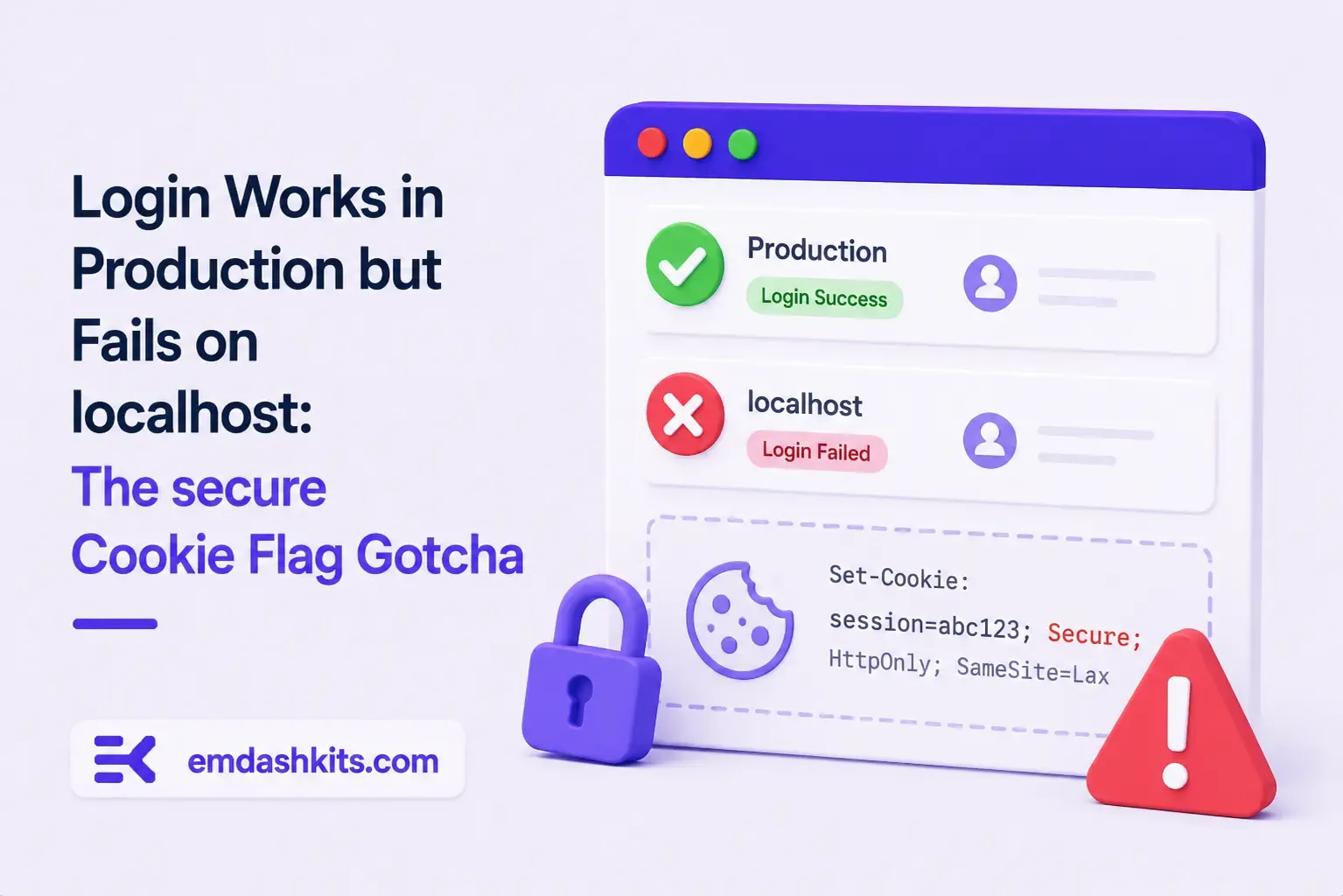
Login Works in Production but Fails on localhost: The secure Cookie Flag Gotcha

July 16, 2026

Login Works in Production but Fails on localhost: The secure Cookie Flag Gotcha

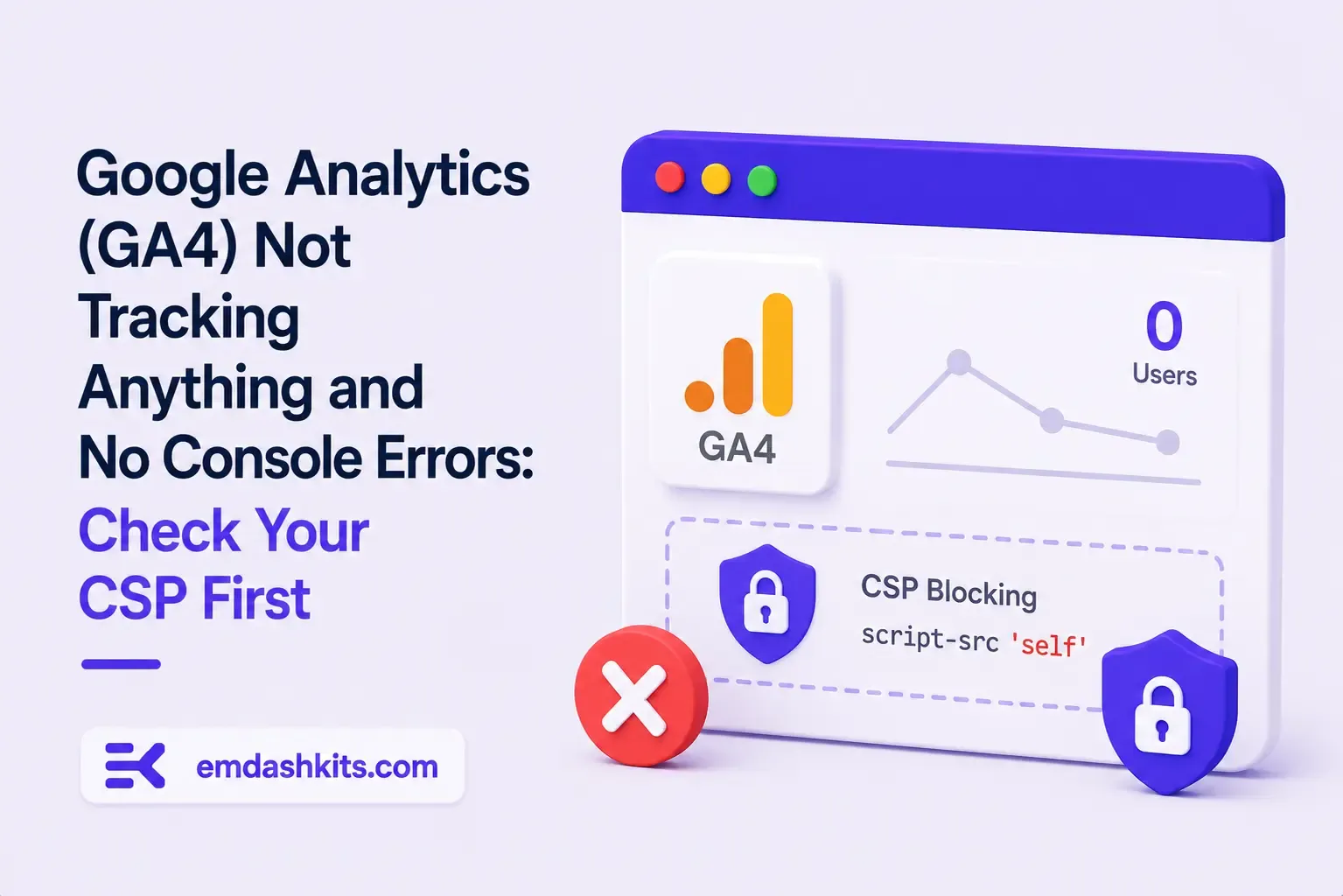
Google Analytics (GA4) Not Tracking Anything and No Console Errors: Check Your CSP First

July 16, 2026

Google Analytics (GA4) Not Tracking Anything and No Console Errors: Check Your CSP First

Native Module Build Fails on Shared Hosting (node-gyp, Old glibc/Python): The .npmrc Fix

July 16, 2026

Native Module Build Fails on Shared Hosting (node-gyp, Old glibc/Python): The .npmrc Fix

Login Works in Production but Fails on localhost: The secure Cookie Flag Gotcha

Login Works in Production but Fails on localhost: The secure Cookie Flag Gotcha

TL;DR — A custom session-cookie login flow appeared to succeed on localhost (the OTP verified, the response looked fine) but every subsequent request to a login-gated page treated the visitor as logged out. Identical code worked fine on the live HTTPS site. The cookie's Secure attribute was hardcoded to true — and per the cookie spec, browsers never store or send a Secure cookie over a plain, non-HTTPS connection.

Table of Contents
  1. Diagnostic
  2. Root cause
  3. Fix
  4. Lessons learned

Diagnostic

Check the actual Set-Cookie response header and the browser's own cookie storage panel — on localhost over http://, the cookie is sent by the server but never actually stored by the browser.

Root cause

// before -- assumes the app is always served over HTTPS
setCookie("session", token, { secure: true, httpOnly: true });
emdashkits.com

A cookie config that quietly assumes "we're always on HTTPS" breaks the instant you test over plain HTTP, which local dev servers commonly are.

Read also:

Fix

// after -- derive secure from the actual request protocol
const isHttps = request.url.startsWith("https://");
setCookie("session", token, { secure: isHttps, httpOnly: true });
emdashkits.com

Lessons learned

  • Any Secure-flagged cookie needs to key off the real request scheme, not an assumption baked in once at cookie-creation time.
  • "Works in production, silently fails in local dev" is a strong signal to check cookie flags before anything else in an auth flow.
  • Check other cookies in the same codebase for the same hardcoded assumption — if one cookie has this bug, sibling cookies set the same way are worth auditing too.
Share
Previous Article

Google Analytics (GA4) Not Tracking Anything and No Console Errors: Check Your CSP First

Comments

Write a comment

Related Articles

Google Analytics (GA4) Not Tracking Anything and No Console Errors: Check Your CSP First

July 16, 2026

Google Analytics (GA4) Not Tracking Anything and No Console Errors: Check Your CSP First

Native Module Build Fails on Shared Hosting (node-gyp, Old glibc/Python): The .npmrc Fix

July 16, 2026

Native Module Build Fails on Shared Hosting (node-gyp, Old glibc/Python): The .npmrc Fix

Uploaded Images Disappear After Every Deploy on Shared Hosting (and Other Reverse-Proxy Gotchas)

July 16, 2026

Uploaded Images Disappear After Every Deploy on Shared Hosting (and Other Reverse-Proxy Gotchas)

Google Analytics (GA4) Not Tracking Anything and No Console Errors: Check Your CSP First

Google Analytics (GA4) Not Tracking Anything and No Console Errors: Check Your CSP First

TL;DR — GA4's gtag.js snippet was installed correctly, the page loaded with no visible JavaScript error, and GA4's real-time report still showed zero activity. The CMS's default Content-Security-Policy had no allowance for analytics domains and no config option to add one — so every request to Google's tracking endpoints was blocked at the browser level before it could fail loudly.

Table of Contents
  1. Diagnostic
  2. Root cause
  3. Lessons learned

Diagnostic

Check the browser's dedicated CSP violation reporting, not the regular console error list — CSP blocks are reported through their own channel, not thrown as normal script errors, so "no console errors" doesn't mean nothing was blocked.

Root cause

The CSP's script-src and connect-src directives had no entry for googletagmanager.com or google-analytics.com, and the CMS exposed no configuration surface to add one — the only way in was patching the CSP directives directly.

// patch-package: add analytics domains to the existing CSP directives
scriptSrc.push("https://www.googletagmanager.com");
connectSrc.push("https://www.google-analytics.com", "https://www.googletagmanager.com");
emdashkits.com
Read also:

Lessons learned

  • "No console errors" is not proof nothing was blocked — CSP violations live in their own reporting surface and are easy to miss if you're only scanning for red error text.
  • Before adding any third-party script tag to a site with a CSP already in place, check the CSP's directives first rather than assuming a silently-empty analytics dashboard means a snippet-installation mistake.
Share
Previous Article

Native Module Build Fails on Shared Hosting (node-gyp, Old glibc/Python): The .npmrc Fix

Next Article

Login Works in Production but Fails on localhost: The secure Cookie Flag Gotcha

Comments

Write a comment

Related Articles

Login Works in Production but Fails on localhost: The secure Cookie Flag Gotcha

July 16, 2026

Login Works in Production but Fails on localhost: The secure Cookie Flag Gotcha

Native Module Build Fails on Shared Hosting (node-gyp, Old glibc/Python): The .npmrc Fix

July 16, 2026

Native Module Build Fails on Shared Hosting (node-gyp, Old glibc/Python): The .npmrc Fix

Uploaded Images Disappear After Every Deploy on Shared Hosting (and Other Reverse-Proxy Gotchas)

July 16, 2026

Uploaded Images Disappear After Every Deploy on Shared Hosting (and Other Reverse-Proxy Gotchas)