How to Export Everything from WordPress (Posts, Media, Users, SEO Data)


How to Export Everything from WordPress (Posts, Media, Users, SEO Data)

The Tools → Export screen in WordPress looks like it does the whole job. It doesn't. The WXR file it produces contains your posts and pages, but it only references your images without including them, skips most plugin data, and knows nothing about your SEO metadata. If you export with the built-in tool alone and delete the old site, you have lost things you will want back. Here's how to export everything from WordPress, layer by layer.

Laptop screen showing source code, representing the technical work of exporting WordPress data
The database holds more than the export screen shows. Source: Pexels
Table of Contents
  1. Layer 1: Content — the WXR Export
  2. Layer 2: Media — the Uploads Directory
  3. Layer 3: SEO Metadata — the Part Everyone Forgets
  4. Layer 4: Users and Authors
  5. Layer 5: The Full Database Dump — Your Insurance Policy
  6. A Worked Example

Layer 1: Content — the WXR Export

Start with the standard export anyway; it's the best-supported format for content. Go to Tools → Export → All content, or use WP-CLI on the server for large sites: the wp export command avoids the browser timeouts that truncate big exports silently. The WXR (WordPress eXtended RSS) file includes posts, pages, comments, categories, tags, custom fields, and navigation menus.

What WXR does not include, per WordPress's own design:

  • The actual media files — only their URLs
  • Theme and plugin settings
  • Widget configuration and site options
  • User passwords and roles beyond basic author attribution
  • Custom post types, unless you export 'All content' rather than a filtered subset

Layer 2: Media — the Uploads Directory

Your images live in wp-content/uploads, organized in year/month folders. Grab the entire directory over SFTP, or zip it on the server first (much faster for libraries in the gigabytes). Two details matter for the destination platform:

  • WordPress generates multiple sizes of every upload (thumbnail, medium, large). You usually only need the originals — the full-size file without dimensions in the filename.
  • Post content references images by absolute URL. Whatever imports your content needs to rewrite those URLs or fetch the files — verify which one your target CMS does, because broken images are the most common post-migration bug.
Read also:

Layer 3: SEO Metadata — the Part Everyone Forgets

Your titles and meta descriptions from Yoast, Rank Math, or All in One SEO are not in the standard export in any usable form. They live in the postmeta database table with plugin-specific keys (Yoast uses _yoast_wpseo_title and _yoast_wpseo_metadesc). Losing them means every page starts from scratch on meta descriptions — a real ranking risk on top of the migration itself, as we cover in what happens to your SEO when you migrate off WordPress.

Three ways to get SEO data out, in order of reliability:

  • A direct SQL query against postmeta, exported to CSV and mapped to the new platform's SEO fields
  • The SEO plugin's own export tool, where it has one (Yoast's export covers settings, not per-post data — check before relying on it)
  • A migration tool or importer that reads the plugin keys natively

Layer 4: Users and Authors

WXR carries authors as attribution on posts, but not full user accounts — and passwords are hashed with WordPress-specific schemes the new platform probably won't accept. Export the users table (or Users → All Users with a plugin) to preserve names, emails, and bios, and plan for everyone to set a new password on the new system. For most marketing sites this is five accounts; for multi-author publications it's worth a spreadsheet mapping old author IDs to new byline entries.

Layer 5: The Full Database Dump — Your Insurance Policy

Finally, take a complete mysqldump of the database, even though you may never open it. It's the only export that contains everything: form entries, WooCommerce orders, comments awaiting moderation, plugin tables. Six months after migration, when someone asks about a testimonial that used to be on the old site, the dump answers questions no WXR file can. Store it with the uploads backup and keep both for at least a year.

A Worked Example

A typical 300-post blog export looks like this: one WXR file (~15 MB), the uploads directory (2–10 GB), a CSV of SEO metadata (300 rows), a users CSV (a handful of rows), and a database dump. That's the complete raw material for the import step — which is where the full migration checklist picks up. If EmDash is the destination, the WordPress to EmDash migration guide shows the import side of this exact process, and the plugin equivalents guide covers what replaces the plugins whose data you just exported.
Share

Comments

Write a comment

Related Articles

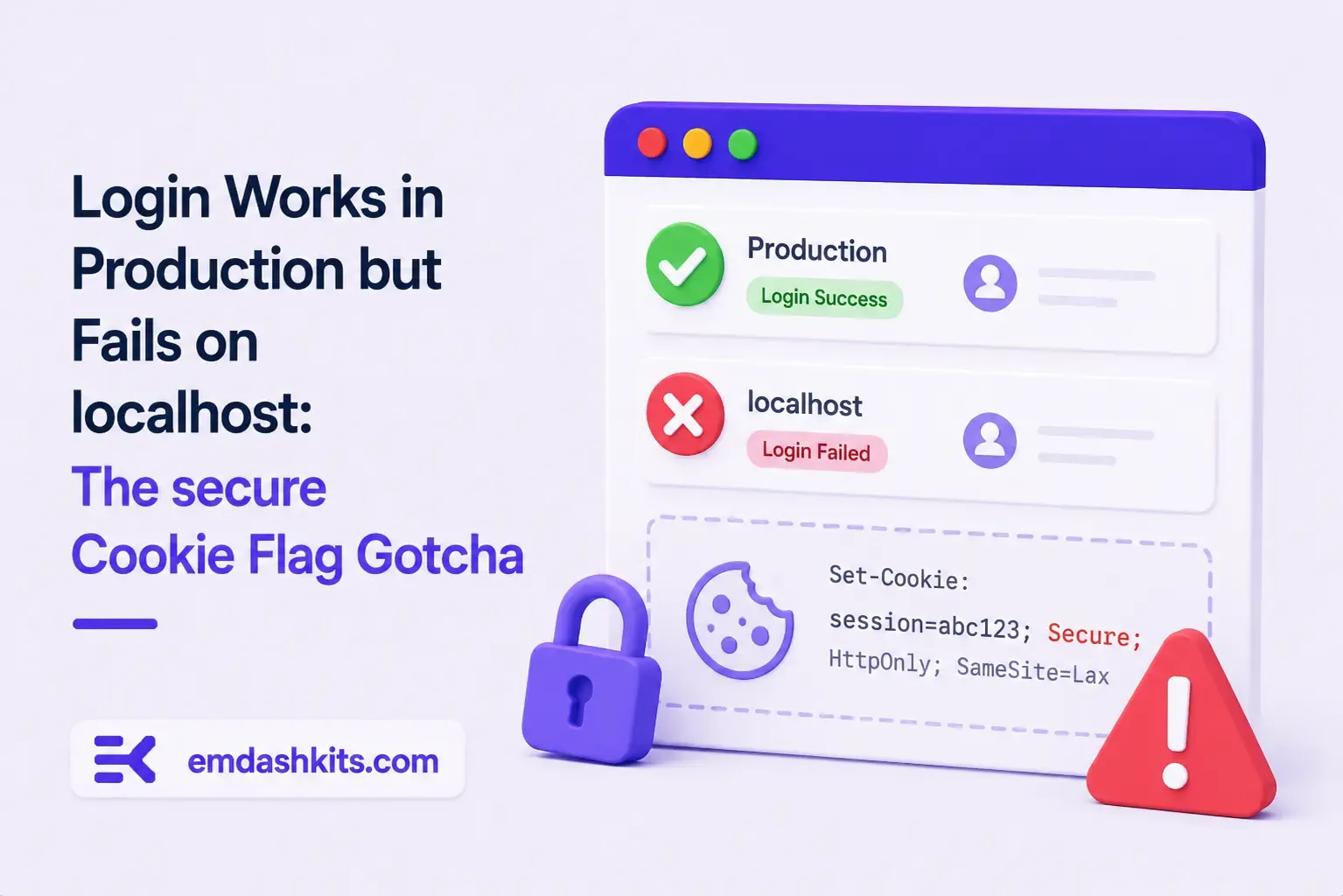
Login Works in Production but Fails on localhost: The secure Cookie Flag Gotcha

July 16, 2026

Login Works in Production but Fails on localhost: The secure Cookie Flag Gotcha

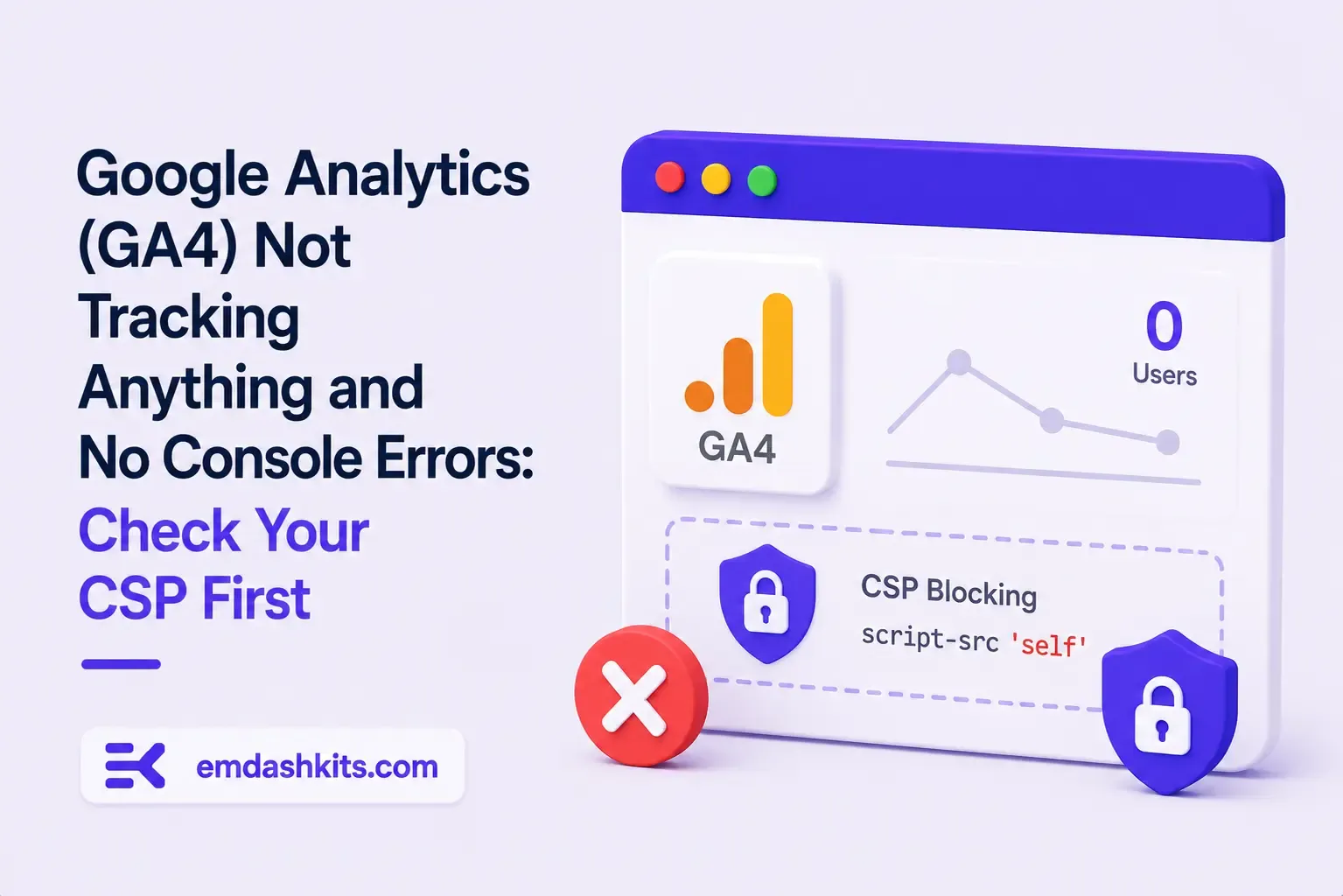
Google Analytics (GA4) Not Tracking Anything and No Console Errors: Check Your CSP First

July 16, 2026

Google Analytics (GA4) Not Tracking Anything and No Console Errors: Check Your CSP First

Native Module Build Fails on Shared Hosting (node-gyp, Old glibc/Python): The .npmrc Fix

July 16, 2026

Native Module Build Fails on Shared Hosting (node-gyp, Old glibc/Python): The .npmrc Fix

Login Works in Production but Fails on localhost: The secure Cookie Flag Gotcha

Login Works in Production but Fails on localhost: The secure Cookie Flag Gotcha

TL;DR — A custom session-cookie login flow appeared to succeed on localhost (the OTP verified, the response looked fine) but every subsequent request to a login-gated page treated the visitor as logged out. Identical code worked fine on the live HTTPS site. The cookie's Secure attribute was hardcoded to true — and per the cookie spec, browsers never store or send a Secure cookie over a plain, non-HTTPS connection.

Table of Contents
  1. Diagnostic
  2. Root cause
  3. Fix
  4. Lessons learned

Diagnostic

Check the actual Set-Cookie response header and the browser's own cookie storage panel — on localhost over http://, the cookie is sent by the server but never actually stored by the browser.

Root cause

// before -- assumes the app is always served over HTTPS
setCookie("session", token, { secure: true, httpOnly: true });
emdashkits.com

A cookie config that quietly assumes "we're always on HTTPS" breaks the instant you test over plain HTTP, which local dev servers commonly are.

Read also:

Fix

// after -- derive secure from the actual request protocol
const isHttps = request.url.startsWith("https://");
setCookie("session", token, { secure: isHttps, httpOnly: true });
emdashkits.com

Lessons learned

  • Any Secure-flagged cookie needs to key off the real request scheme, not an assumption baked in once at cookie-creation time.
  • "Works in production, silently fails in local dev" is a strong signal to check cookie flags before anything else in an auth flow.
  • Check other cookies in the same codebase for the same hardcoded assumption — if one cookie has this bug, sibling cookies set the same way are worth auditing too.
Share
Previous Article

Google Analytics (GA4) Not Tracking Anything and No Console Errors: Check Your CSP First

Comments

Write a comment

Related Articles

Google Analytics (GA4) Not Tracking Anything and No Console Errors: Check Your CSP First

July 16, 2026

Google Analytics (GA4) Not Tracking Anything and No Console Errors: Check Your CSP First

Native Module Build Fails on Shared Hosting (node-gyp, Old glibc/Python): The .npmrc Fix

July 16, 2026

Native Module Build Fails on Shared Hosting (node-gyp, Old glibc/Python): The .npmrc Fix

Uploaded Images Disappear After Every Deploy on Shared Hosting (and Other Reverse-Proxy Gotchas)

July 16, 2026

Uploaded Images Disappear After Every Deploy on Shared Hosting (and Other Reverse-Proxy Gotchas)

Google Analytics (GA4) Not Tracking Anything and No Console Errors: Check Your CSP First

Google Analytics (GA4) Not Tracking Anything and No Console Errors: Check Your CSP First

TL;DR — GA4's gtag.js snippet was installed correctly, the page loaded with no visible JavaScript error, and GA4's real-time report still showed zero activity. The CMS's default Content-Security-Policy had no allowance for analytics domains and no config option to add one — so every request to Google's tracking endpoints was blocked at the browser level before it could fail loudly.

Table of Contents
  1. Diagnostic
  2. Root cause
  3. Lessons learned

Diagnostic

Check the browser's dedicated CSP violation reporting, not the regular console error list — CSP blocks are reported through their own channel, not thrown as normal script errors, so "no console errors" doesn't mean nothing was blocked.

Root cause

The CSP's script-src and connect-src directives had no entry for googletagmanager.com or google-analytics.com, and the CMS exposed no configuration surface to add one — the only way in was patching the CSP directives directly.

// patch-package: add analytics domains to the existing CSP directives
scriptSrc.push("https://www.googletagmanager.com");
connectSrc.push("https://www.google-analytics.com", "https://www.googletagmanager.com");
emdashkits.com
Read also:

Lessons learned

  • "No console errors" is not proof nothing was blocked — CSP violations live in their own reporting surface and are easy to miss if you're only scanning for red error text.
  • Before adding any third-party script tag to a site with a CSP already in place, check the CSP's directives first rather than assuming a silently-empty analytics dashboard means a snippet-installation mistake.
Share
Previous Article

Native Module Build Fails on Shared Hosting (node-gyp, Old glibc/Python): The .npmrc Fix

Next Article

Login Works in Production but Fails on localhost: The secure Cookie Flag Gotcha

Comments

Write a comment

Related Articles

Login Works in Production but Fails on localhost: The secure Cookie Flag Gotcha

July 16, 2026

Login Works in Production but Fails on localhost: The secure Cookie Flag Gotcha

Native Module Build Fails on Shared Hosting (node-gyp, Old glibc/Python): The .npmrc Fix

July 16, 2026

Native Module Build Fails on Shared Hosting (node-gyp, Old glibc/Python): The .npmrc Fix

Uploaded Images Disappear After Every Deploy on Shared Hosting (and Other Reverse-Proxy Gotchas)

July 16, 2026

Uploaded Images Disappear After Every Deploy on Shared Hosting (and Other Reverse-Proxy Gotchas)