Keeping WordPress as a Backend vs Migrating Completely: Trade-offs

Keeping WordPress as a Backend vs Migrating Completely: Trade-offs

Every WordPress migration conversation eventually hits the same fork: rip WordPress out entirely, or keep it as a headless backend and put a modern frontend in front of it. Both are real, working setups — but they solve different problems, and picking the wrong one means redoing the work in a year.

Table of Contents
  1. What "Keeping WordPress as a Backend" Actually Means
  2. The Case for Keeping WordPress
  3. The Case for a Full Migration
  4. Where This Actually Nets Out
  5. A Third Option: Migrate Fully, Once

What "Keeping WordPress as a Backend" Actually Means

A decoupled setup disables the WordPress theme layer entirely. Editors still log into wp-admin and write posts the way they always have, but a separate frontend — usually Next.js or Astro — pulls that content over the WP REST API or WPGraphQL and renders it independently. WordPress becomes purely a content store with an admin panel; it never touches a real visitor's browser.

The Case for Keeping WordPress

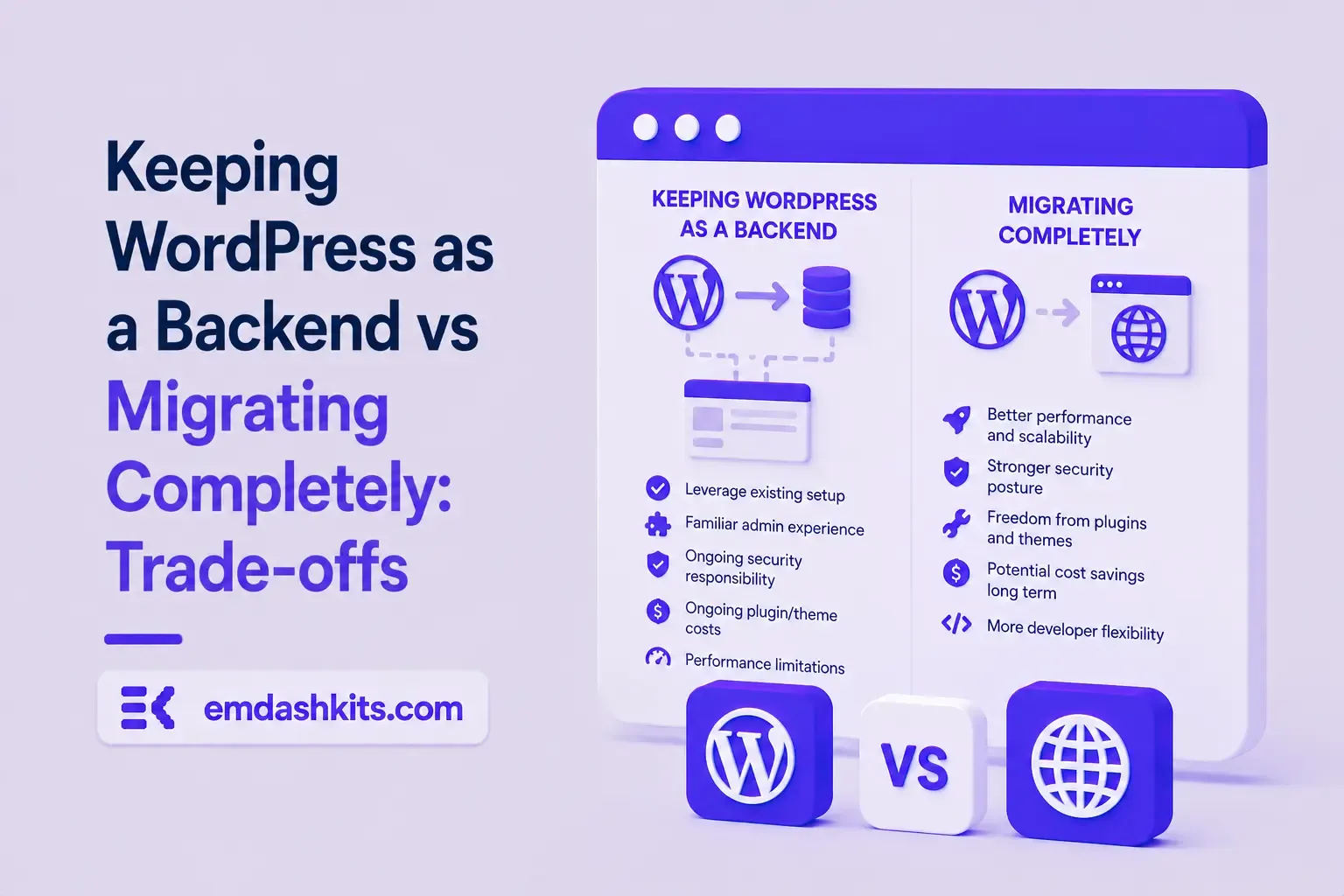
  • Your editorial team already knows wp-admin and doesn't want to relearn a new interface.
  • You have a large library of WordPress-specific plugins (forms, SEO fields, custom post types) doing real work you don't want to rebuild.
  • You want a fast, modern frontend without a full content re-platforming project.

This is the pragmatic middle ground, and it's a legitimate architecture — not just a stopgap. Enterprises with heavy investment in editorial workflows often stay here permanently.

Read also:

The Case for a Full Migration

  • WordPress's plugin ecosystem is also its attack surface — headlessing the frontend doesn't patch a vulnerable plugin still running in wp-admin.
  • You still pay for WordPress hosting, security monitoring, and plugin updates even though visitors never load a WordPress-rendered page.
  • Content modeling in WordPress is fundamentally post/page-shaped; if you need real structured content (nested repeatable fields, multi-type relations), you're fighting the platform, not extending it.

A WordPress VIP breakdown of headless trade-offs puts it plainly: the more separation you introduce between content management and presentation, the more editorial functionality — real-time preview, in-context editing — you have to rebuild yourself. Decoupling doesn't remove complexity, it moves it.

Where This Actually Nets Out

If your only complaint about WordPress is that it's slow to render, headless WordPress solves that specific problem at low migration cost — you keep every plugin and workflow, and swap only the rendering layer. But if your complaints are security, hosting cost, or plugin maintenance, headlessing the frontend doesn't touch any of that, because the WordPress installation — plugins, database, admin panel — is still fully running and still the thing you have to patch and pay for.

That's the actual decision: are you unhappy with what visitors see, or with what you have to maintain behind the scenes? The first is a headless-frontend problem. The second is a migration problem, and no amount of frontend rebuild fixes it — see our full WordPress migration checklist if that's the one you're facing.

A Third Option: Migrate Fully, Once

A full move to a headless CMS built for this from the ground up — like EmDash CMS — gets you the same modern frontend as a decoupled WordPress setup, minus the WordPress installation you still have to secure and pay for underneath it. See our step-by-step WordPress to EmDash migration guide and the head-to-head comparison if you're weighing the two paths directly. Either way, read up on why WordPress's plugin model is a persistent security liability before deciding decoupling alone is enough.
Share

Comments

Write a comment

Related Articles

Login Works in Production but Fails on localhost: The secure Cookie Flag Gotcha

July 16, 2026

Login Works in Production but Fails on localhost: The secure Cookie Flag Gotcha

Google Analytics (GA4) Not Tracking Anything and No Console Errors: Check Your CSP First

July 16, 2026

Google Analytics (GA4) Not Tracking Anything and No Console Errors: Check Your CSP First

Native Module Build Fails on Shared Hosting (node-gyp, Old glibc/Python): The .npmrc Fix

July 16, 2026

Native Module Build Fails on Shared Hosting (node-gyp, Old glibc/Python): The .npmrc Fix

Login Works in Production but Fails on localhost: The secure Cookie Flag Gotcha

Login Works in Production but Fails on localhost: The secure Cookie Flag Gotcha

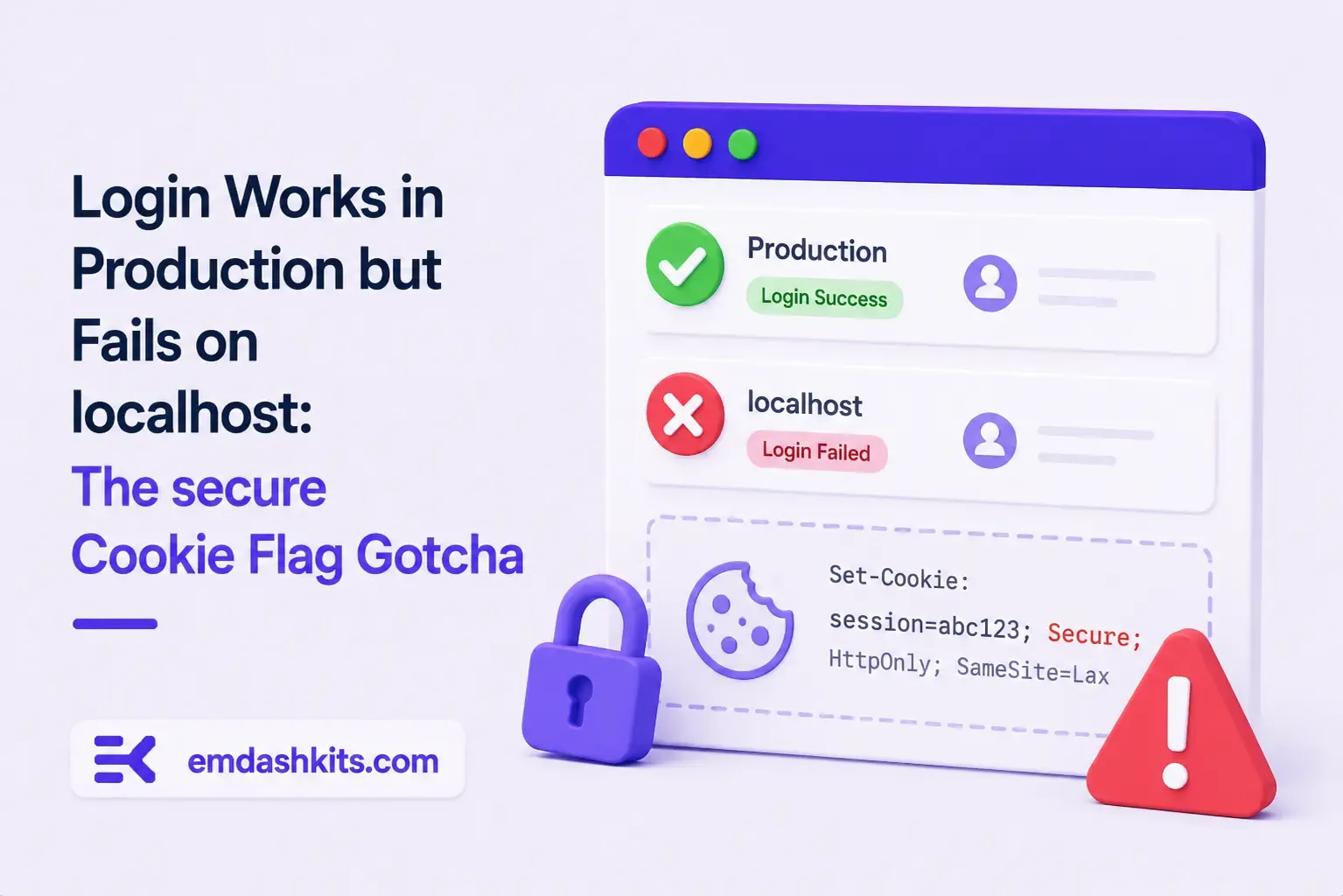
TL;DR — A custom session-cookie login flow appeared to succeed on localhost (the OTP verified, the response looked fine) but every subsequent request to a login-gated page treated the visitor as logged out. Identical code worked fine on the live HTTPS site. The cookie's Secure attribute was hardcoded to true — and per the cookie spec, browsers never store or send a Secure cookie over a plain, non-HTTPS connection.

Table of Contents
  1. Diagnostic
  2. Root cause
  3. Fix
  4. Lessons learned

Diagnostic

Check the actual Set-Cookie response header and the browser's own cookie storage panel — on localhost over http://, the cookie is sent by the server but never actually stored by the browser.

Root cause

// before -- assumes the app is always served over HTTPS
setCookie("session", token, { secure: true, httpOnly: true });
emdashkits.com

A cookie config that quietly assumes "we're always on HTTPS" breaks the instant you test over plain HTTP, which local dev servers commonly are.

Read also:

Fix

// after -- derive secure from the actual request protocol
const isHttps = request.url.startsWith("https://");
setCookie("session", token, { secure: isHttps, httpOnly: true });
emdashkits.com

Lessons learned

  • Any Secure-flagged cookie needs to key off the real request scheme, not an assumption baked in once at cookie-creation time.
  • "Works in production, silently fails in local dev" is a strong signal to check cookie flags before anything else in an auth flow.
  • Check other cookies in the same codebase for the same hardcoded assumption — if one cookie has this bug, sibling cookies set the same way are worth auditing too.
Share
Previous Article

Google Analytics (GA4) Not Tracking Anything and No Console Errors: Check Your CSP First

Comments

Write a comment

Related Articles

Google Analytics (GA4) Not Tracking Anything and No Console Errors: Check Your CSP First

July 16, 2026

Google Analytics (GA4) Not Tracking Anything and No Console Errors: Check Your CSP First

Native Module Build Fails on Shared Hosting (node-gyp, Old glibc/Python): The .npmrc Fix

July 16, 2026

Native Module Build Fails on Shared Hosting (node-gyp, Old glibc/Python): The .npmrc Fix

Uploaded Images Disappear After Every Deploy on Shared Hosting (and Other Reverse-Proxy Gotchas)

July 16, 2026

Uploaded Images Disappear After Every Deploy on Shared Hosting (and Other Reverse-Proxy Gotchas)

Google Analytics (GA4) Not Tracking Anything and No Console Errors: Check Your CSP First

Google Analytics (GA4) Not Tracking Anything and No Console Errors: Check Your CSP First

TL;DR — GA4's gtag.js snippet was installed correctly, the page loaded with no visible JavaScript error, and GA4's real-time report still showed zero activity. The CMS's default Content-Security-Policy had no allowance for analytics domains and no config option to add one — so every request to Google's tracking endpoints was blocked at the browser level before it could fail loudly.

Table of Contents
  1. Diagnostic
  2. Root cause
  3. Lessons learned

Diagnostic

Check the browser's dedicated CSP violation reporting, not the regular console error list — CSP blocks are reported through their own channel, not thrown as normal script errors, so "no console errors" doesn't mean nothing was blocked.

Root cause

The CSP's script-src and connect-src directives had no entry for googletagmanager.com or google-analytics.com, and the CMS exposed no configuration surface to add one — the only way in was patching the CSP directives directly.

// patch-package: add analytics domains to the existing CSP directives
scriptSrc.push("https://www.googletagmanager.com");
connectSrc.push("https://www.google-analytics.com", "https://www.googletagmanager.com");
emdashkits.com
Read also:

Lessons learned

  • "No console errors" is not proof nothing was blocked — CSP violations live in their own reporting surface and are easy to miss if you're only scanning for red error text.
  • Before adding any third-party script tag to a site with a CSP already in place, check the CSP's directives first rather than assuming a silently-empty analytics dashboard means a snippet-installation mistake.
Share
Previous Article

Native Module Build Fails on Shared Hosting (node-gyp, Old glibc/Python): The .npmrc Fix

Next Article

Login Works in Production but Fails on localhost: The secure Cookie Flag Gotcha

Comments

Write a comment

Related Articles

Login Works in Production but Fails on localhost: The secure Cookie Flag Gotcha

July 16, 2026

Login Works in Production but Fails on localhost: The secure Cookie Flag Gotcha

Native Module Build Fails on Shared Hosting (node-gyp, Old glibc/Python): The .npmrc Fix

July 16, 2026

Native Module Build Fails on Shared Hosting (node-gyp, Old glibc/Python): The .npmrc Fix

Uploaded Images Disappear After Every Deploy on Shared Hosting (and Other Reverse-Proxy Gotchas)

July 16, 2026

Uploaded Images Disappear After Every Deploy on Shared Hosting (and Other Reverse-Proxy Gotchas)