How to Clean Up a WordPress Database Before Migrating

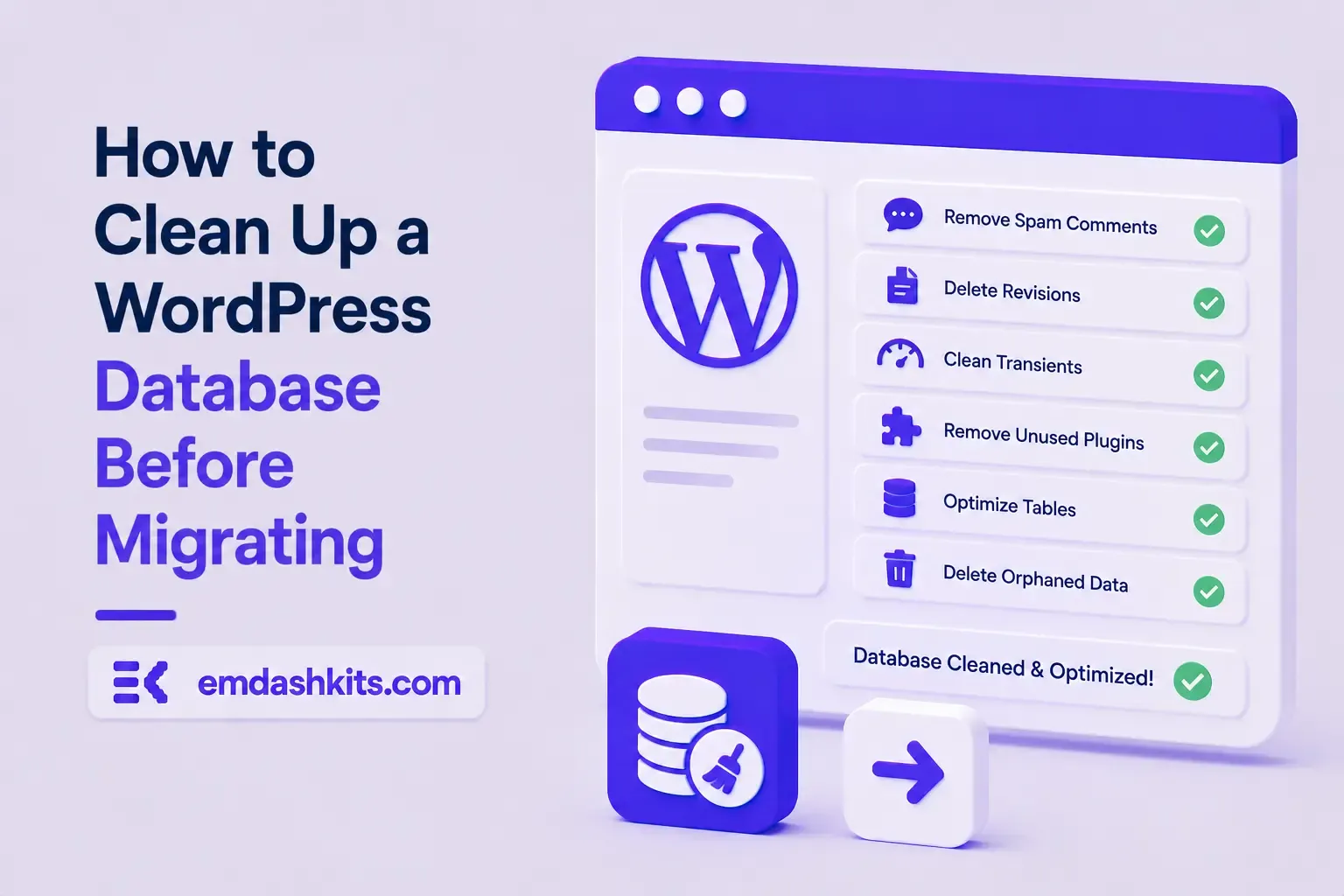
How to Clean Up a WordPress Database Before Migrating

WordPress never deletes anything on its own. Every autosave, every spam comment, every plugin's temporary cache entry sits in your database indefinitely — and by migration day, a lot of what you're exporting is dead weight that has nothing to do with your actual content.

Table of Contents
  1. Why This Matters More at Migration Time
  2. 1. Post Revisions
  3. 2. Spam and Trashed Comments
  4. 3. Expired Transients
  5. 4. Orphaned Post Meta
  6. 5. Auto-Drafts and Unused Media
  7. How to Do It Safely
  8. Then Export for Real

Why This Matters More at Migration Time

A bloated database is a performance annoyance day-to-day, but it becomes an active liability during a migration: bigger SQL dumps take longer to export and import, more rows mean more chances for an import to time out or hit a memory limit, and you don't want to spend hours mapping junk data into your new CMS's content model. Clean before you export, not after.

1. Post Revisions

WordPress autosaves a revision roughly every 60 seconds while a post is being edited. A post that's been edited on and off for a year can easily carry 50+ revision rows, none of which you need in the new system — you only want the published version.

Read also:

2. Spam and Trashed Comments

Deleted comments go to trash, and spam comments sit in the spam queue — neither is purged automatically. A site getting even a modest trickle of spam can accumulate well over 100,000 spam comment rows in a year. None of it should make the trip to your new site.

3. Expired Transients

Transients are temporary cached values plugins store with an expiration timestamp, but WordPress doesn't proactively clean up ones that have already expired. A site running 15-20 plugins can build up thousands of stale transient rows in wp_options — a table that's loaded on every single page request, migrated or not.

4. Orphaned Post Meta

When a post is deleted, its wp_postmeta rows don't always go with it. Plugins that store custom field data are especially prone to leaving orphaned meta behind — rows referencing a post ID that no longer exists anywhere in wp_posts.

5. Auto-Drafts and Unused Media

  • Auto-drafts: WordPress creates one every time you open the "Add New Post" screen, even if you never save it.
  • Orphaned media: images uploaded and never inserted into any post, still taking up space in your media library export.

How to Do It Safely

  • Take a full database backup first — this is not optional. Cleanup deletes rows permanently.
  • Use a dedicated cleanup plugin (WP-Sweep, Advanced Database Cleaner) rather than hand-writing DELETE queries against production data.
  • Cap revisions per post (via a filter or a plugin setting) rather than deleting all history if you might still need recent edits.
  • Re-run the export size check after cleanup — you should see a meaningfully smaller SQL dump.

Then Export for Real

Once the database is clean, follow our full export guide to pull posts, media, users, and SEO metadata in the right order, and check the complete WordPress migration checklist for everything else that needs to happen before and after the move. If database bloat has been dragging down your current site's performance independent of any migration, our breakdown of the real ongoing cost of running WordPress covers why that keeps happening.
Share

Comments

Write a comment

Related Articles

Login Works in Production but Fails on localhost: The secure Cookie Flag Gotcha

July 16, 2026

Login Works in Production but Fails on localhost: The secure Cookie Flag Gotcha

Google Analytics (GA4) Not Tracking Anything and No Console Errors: Check Your CSP First

July 16, 2026

Google Analytics (GA4) Not Tracking Anything and No Console Errors: Check Your CSP First

Native Module Build Fails on Shared Hosting (node-gyp, Old glibc/Python): The .npmrc Fix

July 16, 2026

Native Module Build Fails on Shared Hosting (node-gyp, Old glibc/Python): The .npmrc Fix

Login Works in Production but Fails on localhost: The secure Cookie Flag Gotcha

Login Works in Production but Fails on localhost: The secure Cookie Flag Gotcha

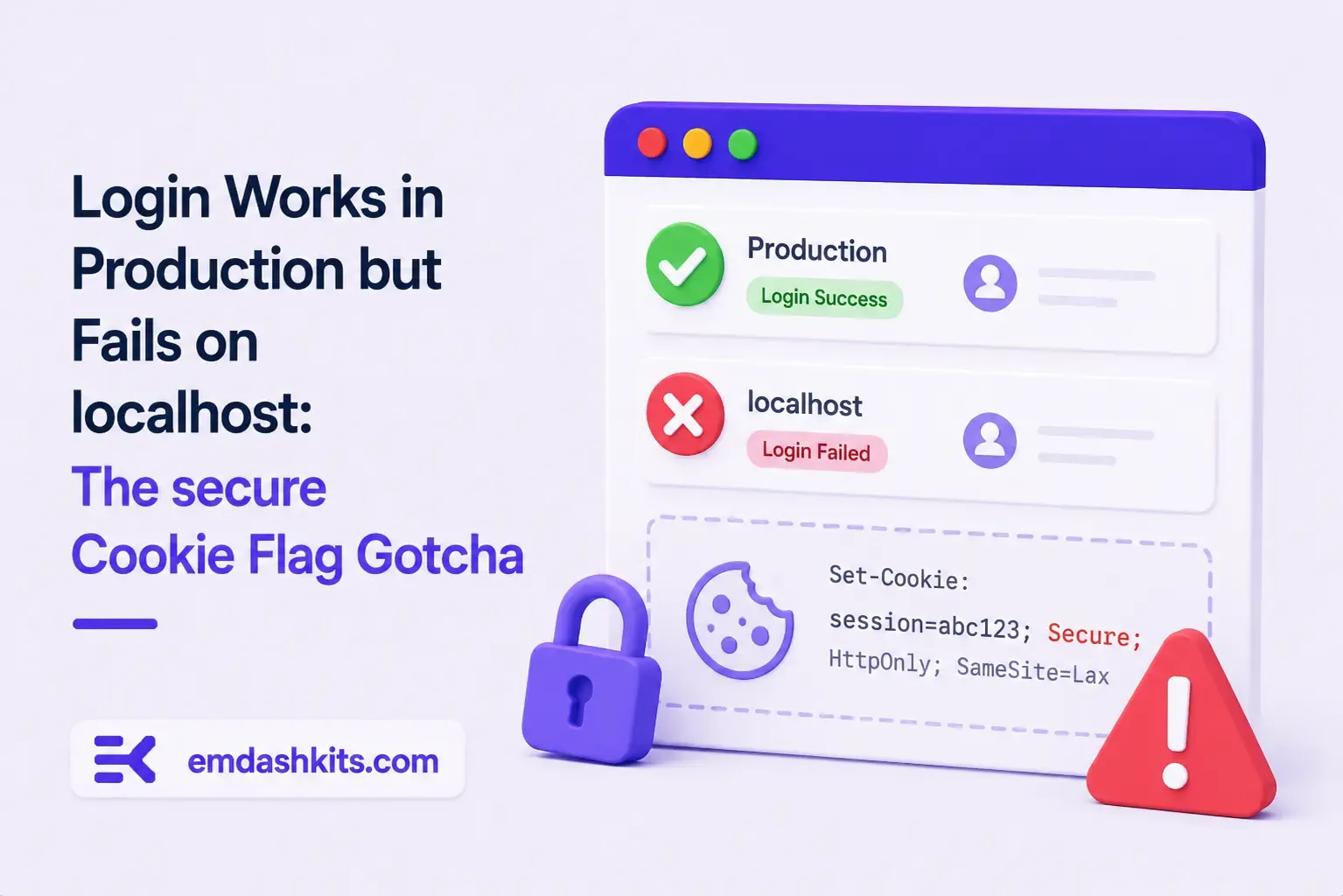
TL;DR — A custom session-cookie login flow appeared to succeed on localhost (the OTP verified, the response looked fine) but every subsequent request to a login-gated page treated the visitor as logged out. Identical code worked fine on the live HTTPS site. The cookie's Secure attribute was hardcoded to true — and per the cookie spec, browsers never store or send a Secure cookie over a plain, non-HTTPS connection.

Table of Contents
  1. Diagnostic
  2. Root cause
  3. Fix
  4. Lessons learned

Diagnostic

Check the actual Set-Cookie response header and the browser's own cookie storage panel — on localhost over http://, the cookie is sent by the server but never actually stored by the browser.

Root cause

// before -- assumes the app is always served over HTTPS
setCookie("session", token, { secure: true, httpOnly: true });
emdashkits.com

A cookie config that quietly assumes "we're always on HTTPS" breaks the instant you test over plain HTTP, which local dev servers commonly are.

Read also:

Fix

// after -- derive secure from the actual request protocol
const isHttps = request.url.startsWith("https://");
setCookie("session", token, { secure: isHttps, httpOnly: true });
emdashkits.com

Lessons learned

  • Any Secure-flagged cookie needs to key off the real request scheme, not an assumption baked in once at cookie-creation time.
  • "Works in production, silently fails in local dev" is a strong signal to check cookie flags before anything else in an auth flow.
  • Check other cookies in the same codebase for the same hardcoded assumption — if one cookie has this bug, sibling cookies set the same way are worth auditing too.
Share
Previous Article

Google Analytics (GA4) Not Tracking Anything and No Console Errors: Check Your CSP First

Comments

Write a comment

Related Articles

Google Analytics (GA4) Not Tracking Anything and No Console Errors: Check Your CSP First

July 16, 2026

Google Analytics (GA4) Not Tracking Anything and No Console Errors: Check Your CSP First

Native Module Build Fails on Shared Hosting (node-gyp, Old glibc/Python): The .npmrc Fix

July 16, 2026

Native Module Build Fails on Shared Hosting (node-gyp, Old glibc/Python): The .npmrc Fix

Uploaded Images Disappear After Every Deploy on Shared Hosting (and Other Reverse-Proxy Gotchas)

July 16, 2026

Uploaded Images Disappear After Every Deploy on Shared Hosting (and Other Reverse-Proxy Gotchas)

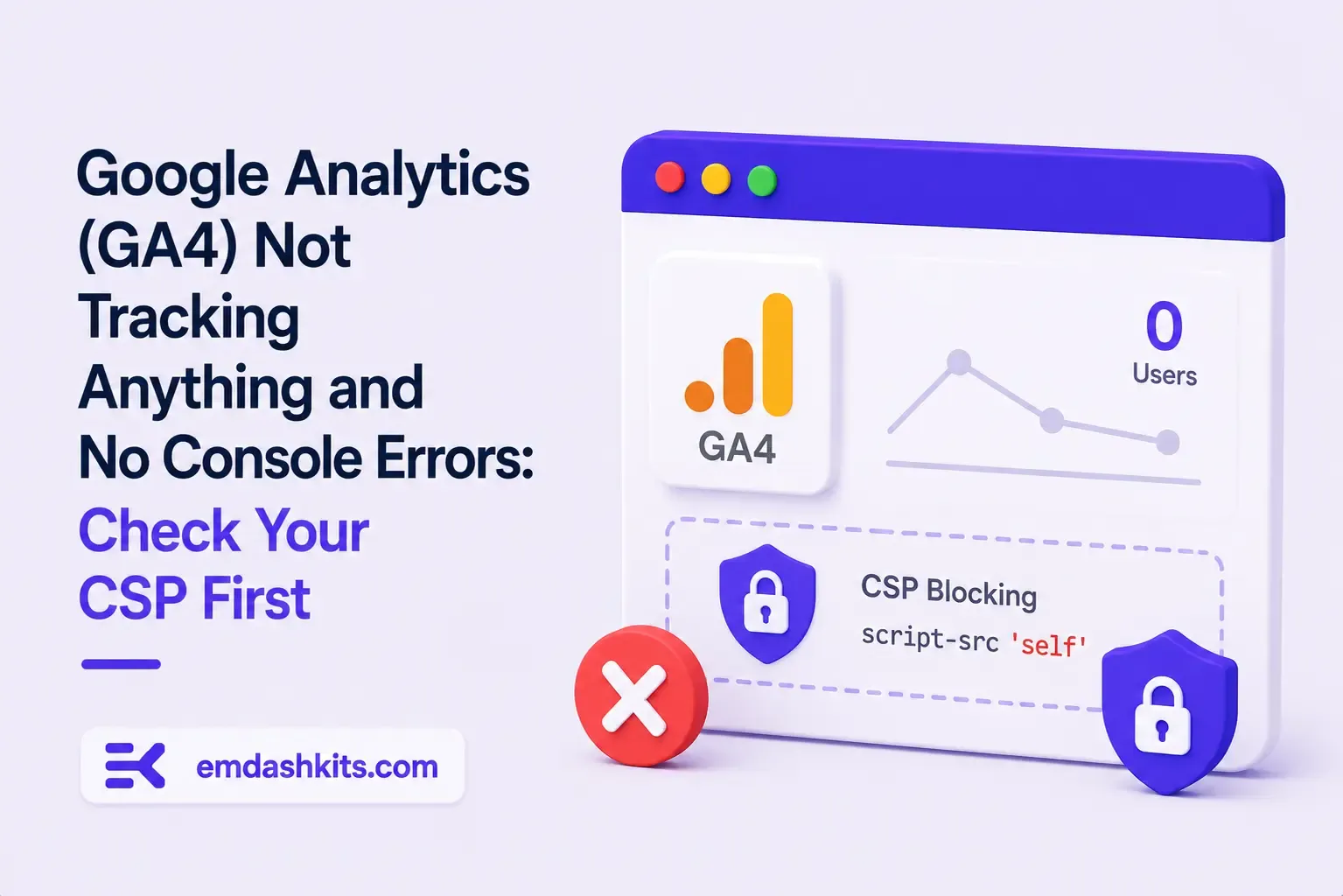
Google Analytics (GA4) Not Tracking Anything and No Console Errors: Check Your CSP First

Google Analytics (GA4) Not Tracking Anything and No Console Errors: Check Your CSP First

TL;DR — GA4's gtag.js snippet was installed correctly, the page loaded with no visible JavaScript error, and GA4's real-time report still showed zero activity. The CMS's default Content-Security-Policy had no allowance for analytics domains and no config option to add one — so every request to Google's tracking endpoints was blocked at the browser level before it could fail loudly.

Table of Contents
  1. Diagnostic
  2. Root cause
  3. Lessons learned

Diagnostic

Check the browser's dedicated CSP violation reporting, not the regular console error list — CSP blocks are reported through their own channel, not thrown as normal script errors, so "no console errors" doesn't mean nothing was blocked.

Root cause

The CSP's script-src and connect-src directives had no entry for googletagmanager.com or google-analytics.com, and the CMS exposed no configuration surface to add one — the only way in was patching the CSP directives directly.

// patch-package: add analytics domains to the existing CSP directives
scriptSrc.push("https://www.googletagmanager.com");
connectSrc.push("https://www.google-analytics.com", "https://www.googletagmanager.com");
emdashkits.com
Read also:

Lessons learned

  • "No console errors" is not proof nothing was blocked — CSP violations live in their own reporting surface and are easy to miss if you're only scanning for red error text.
  • Before adding any third-party script tag to a site with a CSP already in place, check the CSP's directives first rather than assuming a silently-empty analytics dashboard means a snippet-installation mistake.
Share
Previous Article

Native Module Build Fails on Shared Hosting (node-gyp, Old glibc/Python): The .npmrc Fix

Next Article

Login Works in Production but Fails on localhost: The secure Cookie Flag Gotcha

Comments

Write a comment

Related Articles

Login Works in Production but Fails on localhost: The secure Cookie Flag Gotcha

July 16, 2026

Login Works in Production but Fails on localhost: The secure Cookie Flag Gotcha

Native Module Build Fails on Shared Hosting (node-gyp, Old glibc/Python): The .npmrc Fix

July 16, 2026

Native Module Build Fails on Shared Hosting (node-gyp, Old glibc/Python): The .npmrc Fix

Uploaded Images Disappear After Every Deploy on Shared Hosting (and Other Reverse-Proxy Gotchas)

July 16, 2026

Uploaded Images Disappear After Every Deploy on Shared Hosting (and Other Reverse-Proxy Gotchas)